

How to add and edit stickers
Adding stickers such as emojis and arrows to animated GIFs can make your content more engaging and visually appealing. This help guides how to use Honeycam's sticker feature to add and edit a variety of decorative objects.
Quick summary
- Record your screen, or open an existing file to edit
- Click Edit & Effect → Insert → New Sticker
- Adjust the size and position, and customize the details
1. Open the insert menu
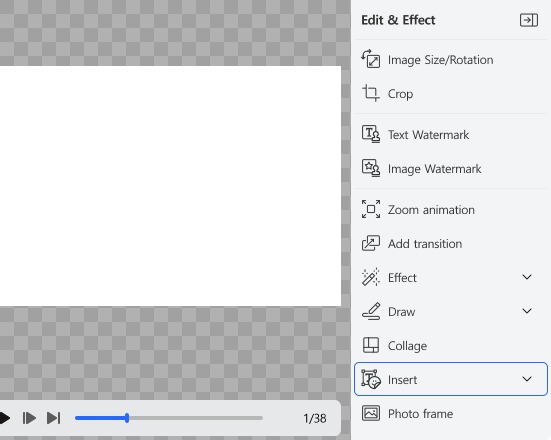
After recording your screen or loading an image to edit, click the Insert button in the Edit & Effect panel on the right side of the screen.
2. Choose and insert a sticker
Click the Insert New Sticker button (the third one) at the top of the panel.
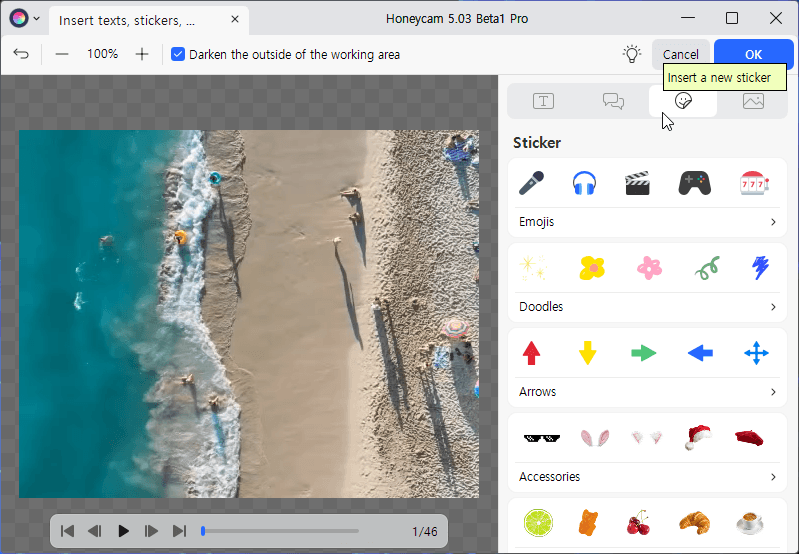
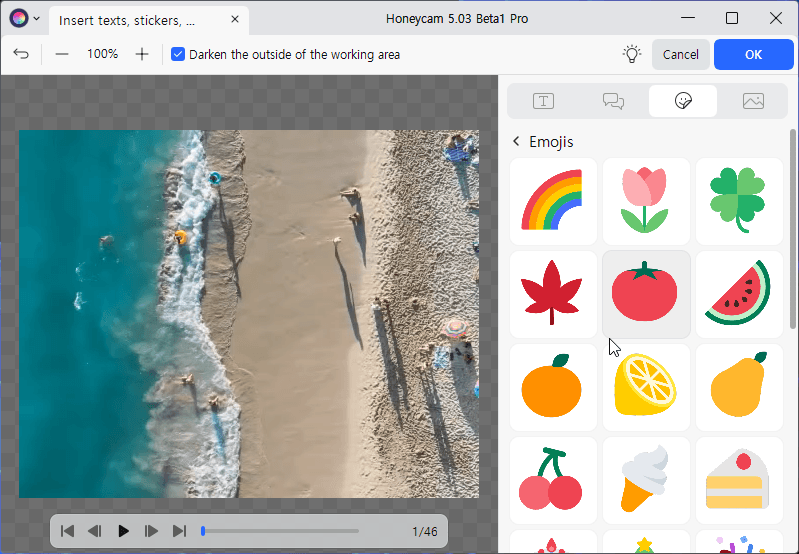
Browse through various categories such as emojis, doodles, arrows, acessories, and food. Click the sticker you want and it will be immediately added to the canvas on the left.
3. Edit the sticker style (layer settings)
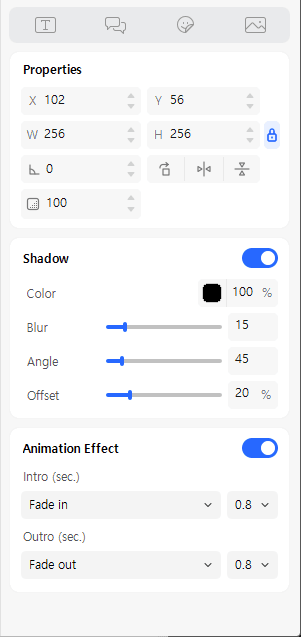
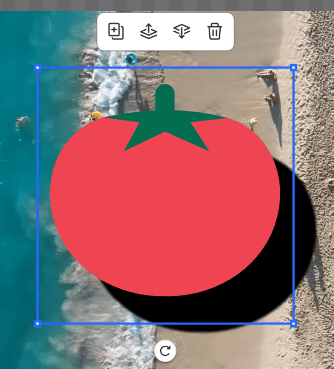
Click the inserted sticker to customize the sticker style in detail. You can access the settings through the panel on the right, and the toolbar shown on the canvas.
- Right-side panel: Adjust the sticker's size, position, rotation angle, and opacity. Add shadows and dynamic animation effects.
- Canvas toolbar: Use the Copy button to duplicate the selected sticker. If multiple objects overlap, use Upward or Downward to adjust the layer structure.
4. Apply and save
Click the OK button. Return to the main editing screen and click the Save button.